Wrong Menu on Delivery Apps? Check the Lunch-to-Dinner Changeover
Summary Highlights
Lunch is over, dinner hasn’t started, and the delivery app shows dishes the kitchen can’t make yet. Check which menu covers the gap before changing store hours. Test the immediate and scheduled order views separately. Here’s a three-time check for a UK restaurant shift lead.
If a delivery app shows the wrong items between lunch and dinner, check which menu applies during the gap. A store can be open while the lunch menu has ended and the dinner menu has not started. On Deliveroo, that gap can bring up your default menu. On Uber Eats, an item can be missing because its own hours are narrower than the menu’s hours. Check those rules before changing the store’s opening hours.
Give the gap its own answer
Say lunch ends at 3 p.m. and dinner starts at 4 p.m. The store stays open between shifts, but the kitchen can only make soup and sandwiches during that hour. Write down what customers should be able to order at 3:30 p.m. before anyone edits the listing.
Deliveroo’s scheduled-menu guide says it shows the default menu when no other menu is scheduled. If the default lists the full dinner menu, an open store can show dishes the kitchen cannot make yet. Depending on what the shift can serve, make the default work for the gap or set up a separate timed menu for it. If the kitchen cannot take any orders, have the manager review the store’s order-taking hours separately. A gap in menu schedules is not a closure.
Check menu hours and item hours separately
If your app supports both menu-level and item-level schedules, check them separately. Verify which menu is active at the expected time. If only one item is missing, check its own hours before changing the whole menu.
Check where the menu is maintained before making the correction. If a point-of-sale (POS) integration controls the menu, use the approved workflow in the system that publishes it. For a menu managed in Deliveroo’s Menu Manager, save and publish the change. Deliveroo also says sites sharing a menu share its schedules, so confirm which locations will inherit the edit.
Check the customer view on both sides of the change
Have the shift lead run the check for the correct location and day of week. In this example, each row has one item that should be orderable and one it is too early or too late to sell. Use different items from your real menu, and stop before placing an order.
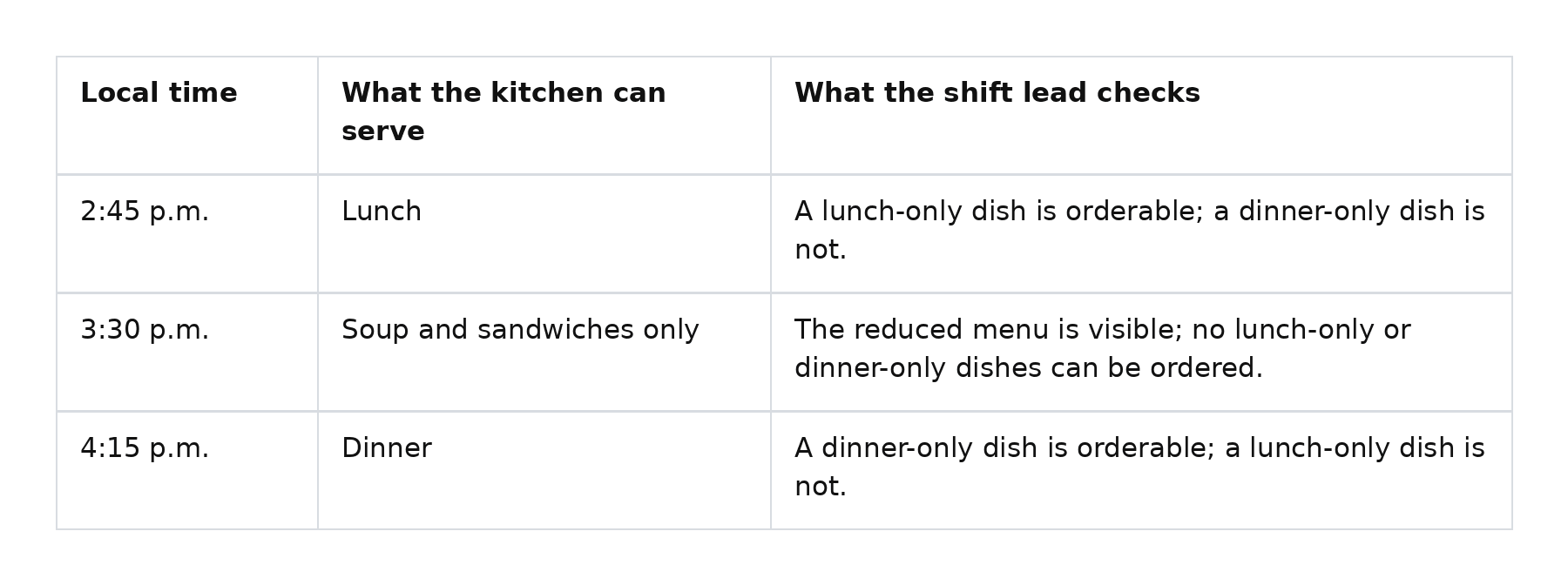
If your listing accepts future orders, check that view separately. Deliveroo’s scheduled-menu FAQ says the selected future slot determines the menu shown. At 3:30 p.m., seeing a dinner dish when you select a 4:30 p.m. slot can be correct. Seeing it for immediate ordering is a different result.
If the check fails, record the location, app, local time, order mode, item, and expected versus observed result. Change the smallest rule that explains it, then recheck the gap and the two neighboring menus. For a broader storefront review, use the Voosh delivery app listing audit.
If the problem is stores going offline rather than the wrong menu appearing, explore Voosh Marketplace Store Uptime for supported marketplace connections. It does not publish menus or confirm item-level availability.