Delivery App Says Picked Up, but the Bag Is Still at the Restaurant
Summary Highlights
The delivery app says “picked up.” The sealed bag is still on your counter. Check the exact order number, then find out what physically left: all bags, some bags, or none. If no one saw the handoff, say that. One shift lead should contact the marketplace through live-order support before anyone makes a second order. Here’s a counter procedure for Canadian restaurants when the pickup status and the physical handoff disagree.
If an app says an order was picked up but the matching bag is still at your restaurant, treat it as a live handoff exception. Check the order number and confirm whether that specific bag actually left. If the app and the physical handoff still disagree, assign one person to contact the marketplace through its live-order support before the store releases another bag, remakes the order, or cancels it.
This is not a prep-time problem. The food can be ready and the pickup record can still be wrong.
Match the order before touching the bag
Check three things together: the marketplace and location on the order, the order number on the bag, and the number of bags expected. A name alone can match more than one order. A bag on the shelf could also be the second part of a paid order or a different order with a similar label.
Ask the staff member who handled the pickup what physically left, if anything. Write down whether staff saw no handoff, a partial handoff, or a completed handoff. If nobody saw it, write unknown. Keep the app status separate from what staff witnessed; don't turn either one into a guess about what the courier did.
Choose the next action at the counter
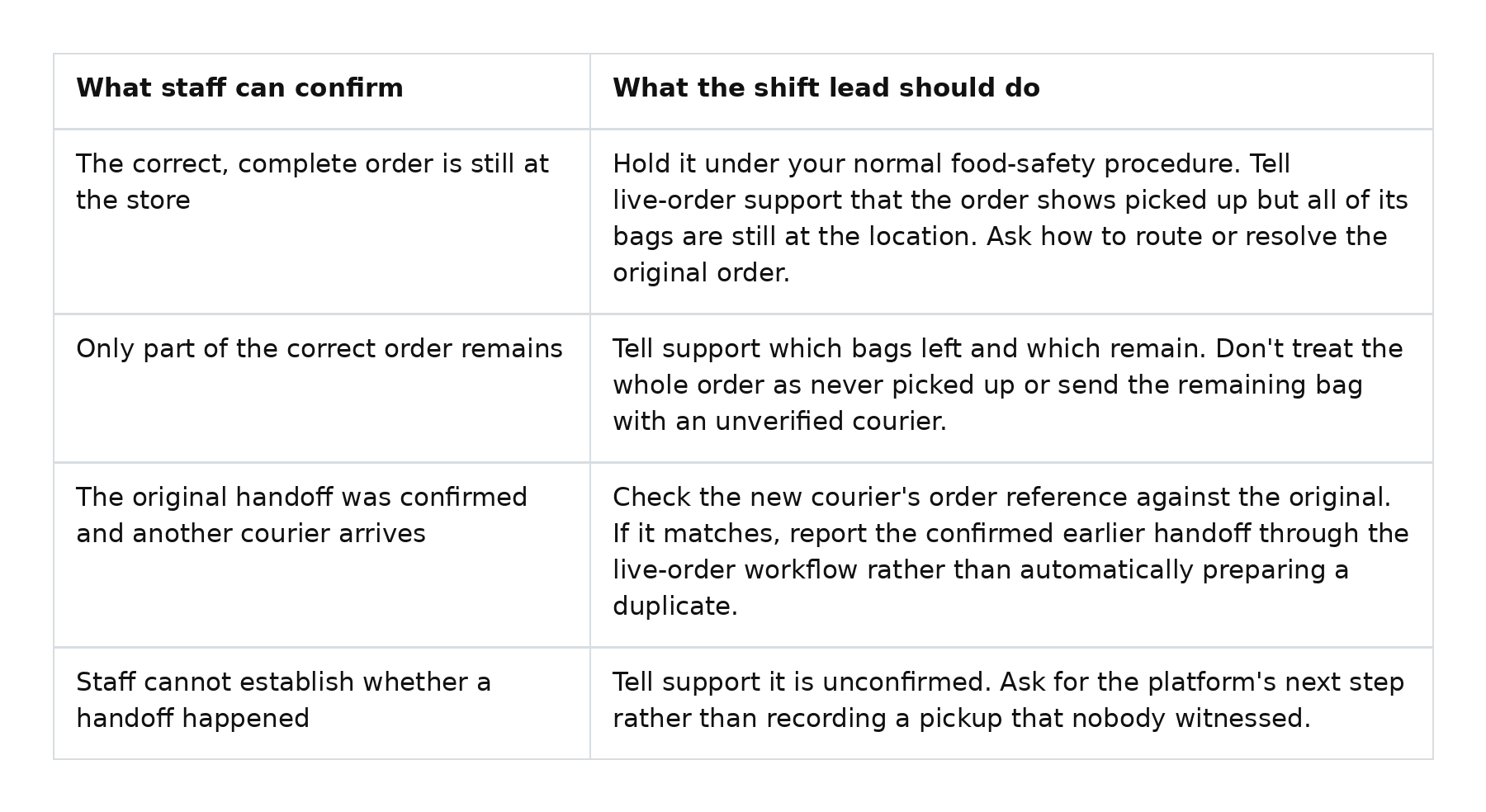
A simple message helps: “Order 231 for this location shows picked up. Both bags are still sealed at our counter and we have no confirmed handoff. What should we do with the original order?” The number is illustrative. Use the actual order reference in the marketplace's support channel, not in a public or shared staff log.
Use the platform’s own pickup and support flow
DoorDash’s Canadian pickup verification instructions describe how Dashers verify a bag using its receipt QR code or, in the documented alternatives, its order number. The scan is for the courier through their app. If your staff sees a conflicting status or a Dasher issue on a live order, use DoorDash Merchant Support in Canada through an available merchant channel.
For any other marketplace, open the merchant support flow for your store and choose the issue that matches what you verified. A status that says picked up with all bags still on the shelf is not the same as having a witness confirm a wrong bag left. Tell support exactly what you observed; don’t assume another platform uses DoorDash’s verification steps.
Give the next shift one record
Keep a short exception record in your approved system: store, marketplace, order reference, app status, actual handoff or unknown, time, owner, and the resolution from support. Keep customer names and contact details out of shared shift notes. If the same problem recurs, compare incidents by store and shift to see whether the gap is at the shelf, during the handoff, or in status updates.
For prevention before a bag reaches the counter, use Voosh’s delivery staff training guide. It covers routine handoff verification. The steps above are for the moment that process and the marketplace status no longer agree.
If the separate issue is whether a supported marketplace storefront is online or offline, explore Voosh Marketplace Store Uptime. It does not verify individual handoffs.